Link Preview: How to Control What Your Shared URL Shows
A link preview is built from your page metadata. Here are the tags that matter, a repo audit checklist, and how to fix them with your coding agent.
On this page
TL;DR
- A link preview is generated from page metadata, including a title, description, image, and URL.
- Open Graph tags usually control social and messaging previews, while HTML title and description tags serve search and other consumers.
- Inspect the generated HTML, not only the source template. Build steps can remove, duplicate, or alter metadata.
- SEOAgent runs inside your coding agent on your own model, proposes edits in your repository, and keeps each change approval-gated.
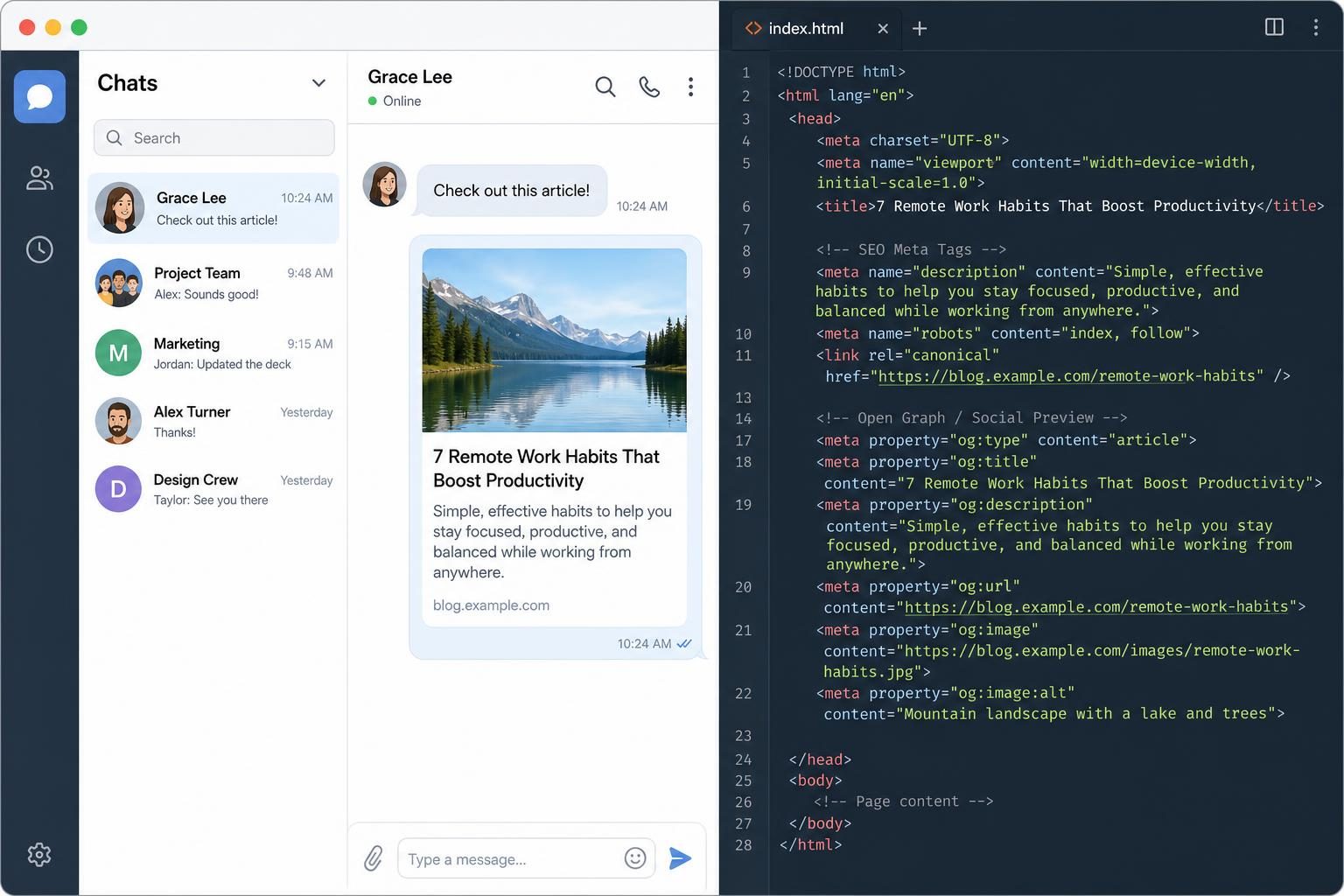
A link preview is the title, description, image, and URL context that a platform generates when someone shares your page. It appears in Slack, LinkedIn, messaging apps, social feeds, collaboration tools, and some search-adjacent surfaces. A page can work perfectly in a browser and still produce a blank image, an old title, or the wrong canonical URL in a shared post.
The fix starts in the repository. Find the metadata source, inspect the HTML that reaches production, and test the URL after deployment. This guide covers the fields that matter, the failure modes that waste developer time, and an approval-gated workflow with SEOAgent.
What is a link preview?
A link preview is a compact representation of a destination URL created by the service that receives the link. The service fetches the page, reads available metadata, and decides which values to display. The preview usually contains a title, a short description, a representative image, and a link or domain label.
Slack calls this process link unfurling. Its classic unfurling behavior crawls a URL and attaches a preview to the message. LinkedIn documents Open Graph fields such as og:title, og:image, og:description, and og:url for website shares. The same page can therefore produce slightly different cards across services.
A link preview belongs to the sharing surface, not to the page itself. Your article might display an H1 such as “Repository SEO for Coding Agents,” while a shared card uses an Open Graph title such as “SEO for Coding Agents | SEOAgent.” Both can be valid, but a card that says “Home” gives the recipient little reason to open it.
Platforms also cache fetched values. A corrected image might appear for a new crawler request while an existing Slack message still shows the old image. Treat the preview as a separately fetched representation of the page. Test several representative URLs, including a blog post, a feature page, and a page with a dynamic route.
A link preview is controlled by the destination page’s fetched metadata, then filtered through each platform’s own crawler and cache.
How link previews get their content from a webpage
The page’s <head> supplies most preview inputs. Start with the standard HTML title, meta description, canonical link, and social fields. The Open Graph protocol places its metadata in <meta> elements and defines og:title, og:type, og:image, and og:url as core properties for a graph object, as documented by the Open Graph protocol.
<title>SEO for Coding Agents | SEOAgent</title>
<meta name="description" content="Audit and improve repository SEO with an approval-gated coding-agent workflow.">
<link rel="canonical" href="https://seoagent.com/features/seo-optimization">
<meta property="og:type" content="website">
<meta property="og:title" content="SEO for Coding Agents | SEOAgent">
<meta property="og:description" content="Audit and improve repository SEO with an approval-gated coding-agent workflow.">
<meta property="og:image" content="https://seoagent.com/images/seo-optimization.png">
<meta property="og:url" content="https://seoagent.com/features/seo-optimization">
The example shows common SEO metadata, but no single tag controls every consumer. Google can create a search snippet from page text instead of the meta description, and a social platform can select a different field or retain a cached value. Google’s guidance says title links can draw on multiple sources, while snippets primarily come from page content and sometimes use the meta description.
The <a> tag relationship is different. An anchor’s href identifies the destination and its anchor text describes the link in the source page. Metadata describes the destination when a crawler or sharing service fetches it. A link such as <a href="/features/seo-optimization">repository SEO optimization</a> does not replace og:title or og:image.
Use absolute URLs for canonical, Open Graph, and image values. A relative image path can resolve correctly in a browser and fail for a crawler that requests the asset from a different context. Check the response status too. A preview crawler needs to reach the HTML and the image without an authentication wall, an accidental redirect chain, or a blocked asset.
Link preview SEO: the metadata worth checking
What is metadata in SEO? Metadata is machine-readable information attached to a page that describes its title, summary, URL, media, directives, or structured entities. It helps systems interpret a page, but metadata alone cannot guarantee rankings, snippets, or social display choices.
Write the HTML title for the page’s actual intent. Keep the description useful and consistent with the visible copy. The HTML SEO description should explain what a visitor will find, not repeat a keyword several times. Google says it can choose page text over a meta description when that text better matches a query, so write both the description and the opening content clearly.
Check these values together:
- The title and visible H1 describe the same page.
- The description states the page’s subject or action in plain language.
- The canonical points to the preferred URL, with the correct protocol and path.
- The social image represents the page and uses an absolute, publicly reachable URL.
- Robots directives do not accidentally add
noindexor block required assets.
Schema.org structured data serves a different purpose. Schema.org markup can describe an organization, article, product, or other entity in JSON-LD. It helps eligible systems understand page type and relationships. It does not substitute for Open Graph metadata, and adding JSON-LD will not repair a missing social image.
For example, a feature page might use Organization and WebPage structured data while still needing og:title, og:description, and og:image. Validate each layer separately. A valid JSON-LD block does not prove that the generated HTML has one correct title or that the image responds with a successful status.
Keep visible copy, HTML metadata, social metadata, canonical URLs, and structured data consistent, then test each output independently.
A practical link preview audit for a site in a repo
Audit the generated page before editing a helper. Framework conventions differ, and the file that looks like the source may only provide defaults. Look in a route component, layout file, metadata helper, static HTML template, or build-time content loader. Then inspect the deployed response.
- Search the repository for
og:title,og:image,description,canonical, andtwitter:card. Record every file that writes them. - Open a production URL with a header inspection tool and view the returned HTML. Confirm one title, one description, one canonical, and the expected social tags.
- Check every URL value. Use absolute HTTPS URLs, confirm the image response, and inspect redirects. A 404 image or a relative path can remove the visual card.
- Build the site after the change. Server-rendered and static output can differ from a development view, especially when metadata is generated at build time.
- Share a representative URL in the target platform. Compare the result with the fetched HTML and allow for platform caching before declaring the change ineffective.
Suppose a route component sets a post title, while the root layout adds a second description and a default og:image. The browser may show the right title because browsers use the first title element, while a crawler sees duplicate or conflicting metadata. Fix ownership of each field, then verify the final response rather than trusting the component alone.
When not to change the page metadata
Pause the edit when the failure sits outside the page source. The advice in this guide does not solve every preview problem. Do not change tags first when:
- The URL is behind authentication, a firewall, or a bot challenge that blocks the platform crawler.
- The platform has cached the old card and its refresh process has not run yet.
- A redirect sends the shared URL to a different page whose metadata you have not audited.
- The platform intentionally ignores a field or applies its own card rules.
Capture the response headers, final URL, and generated HTML before changing code. That evidence separates a repository defect from a crawler or cache issue.
How SEOAgent fits into a link preview workflow
SEOAgent runs on your own model inside your coding agent. It writes suggested fixes into your repository, and you approve every change. There is no second model subscription or per-credit metering for this repository workflow. Your agent can inspect the files that actually define the site instead of asking you to copy metadata into a separate dashboard.
A representative prompt in Claude Code, Cursor, or Codex could be:
Audit link preview metadata for the three URLs below.
Find the source files for title, description, canonical, og:title,
og:description, og:image, and og:url.
Inspect the generated HTML after the build.
Propose repository changes only. Do not publish or edit unrelated files.
URLs: /blog/example, /features/seo-optimization, /
The agent might propose edits in apps/web/src/lib/blog/markdown-blog.ts, a route layout, a metadata helper, or a static template. The exact file depends on the repository. Review the diff for duplicate tags, invented copy, incorrect canonical paths, and image URLs that do not exist. Then run the project’s normal lint, test, and build commands before shipping the approved changes.
SEOAgent’s SEO optimization in the repository workflow fits this task because its documented capabilities include site audits, metadata generation, alt text, and Schema.org markup. Its product screenshots and visual SEO checks capability can help when a page needs a real product image rather than a generic card asset.
This workflow requires a coding agent and a repository. SEOAgent is not a dashboard-only service. The coding agent writes the approved files, and you ship the repository. Google Search Console analysis, keyword research, competitor research, and related cloud data belong to the paid cloud tier rather than the local metadata audit.
After the metadata fix, use automatic internal linking to review anchor text and destination paths, or use building topic clusters when several pages need clearer topical relationships. Those features support the surrounding site structure; they do not replace link preview tags.
Link preview checklist
Run this checklist against the generated HTML for every important template:
- Use a unique, descriptive title that matches the page intent.
- Write a useful description and a matching HTML SEO description in the page head.
- Set the correct canonical URL with an absolute HTTPS address.
- Provide valid
og:title,og:description,og:image, andog:urlvalues. - Check that the social image exists, loads without authentication, and represents the page.
- Use absolute URLs for images and canonical values.
- Keep the visible H1, title, description, and page intent consistent.
- Check accessible image alternatives where the image also appears in page content.
- Remove accidental
noindex, blocked assets, duplicate tags, and unwanted redirects. - Validate the generated HTML after the build.
- Perform a real share test in the platform where the problem appeared.
| Symptom | Likely cause | First check |
|---|---|---|
| Image is missing | Relative URL, failed response, blocked crawler, or missing og:image |
Request the absolute image URL and inspect its status |
| Wrong title appears | Duplicate title sources, stale cache, or platform selection | Inspect the final HTML and remove conflicting tags |
| Old preview remains | Platform cache | Retest with a fresh share and the platform’s documented refresh path |
| Preview points to the wrong URL | Incorrect canonical, og:url, redirect, or route metadata |
Compare the final URL, canonical, and Open Graph URL |
A link preview becomes predictable when you treat it as a build artifact. Find the metadata source, inspect what the server returns, approve the smallest repository change, and verify the shared URL after deployment.
References
Put SEO on autopilot in your own editor
SEOAgent runs as a free skill inside Claude Code, Cursor, and Codex — on the model you already pay for. Audit, plan, and write SEO content right in your repo, with every change reviewed before it ships. No second AI subscription.
Your first SEO pull request in about 5 minutes. You pick the repo, and you merge every change.
What do you use to work on your site?
Pick one above and we take you to the right setup.